Experiencing Roblox glitches, crashes, or performance issues on your PC? You are not alone. Many US gamers, balancing demanding jobs and family life, find their precious gaming time interrupted by technical hiccups. This comprehensive guide on how to reinstall Roblox Player is specifically designed for you. We understand that a smooth, reliable gaming experience is key to unwinding and connecting with friends online. Reinstalling Roblox can often be the simplest and most effective solution to persistent problems, from frozen screens to slow loading times, ensuring you can jump back into your favorite experiences without frustration. This article will walk you through every step, from proper uninstallation to a fresh, clean installation, addressing common concerns and providing tips to optimize your game performance. Get ready to reclaim your seamless Roblox adventure and make the most of your valuable gaming moments.
Why is my Roblox crashing after installing an update?
If your Roblox starts crashing right after an update, it often points to a corrupted update download or an incompatibility with existing files on your system. A clean reinstall is highly recommended here, as it ensures you get a fresh, uncorrupted version of the updated game files, effectively bypassing any issues that arose during the patching process.
How do I fix Roblox not launching after a fresh install?
If Roblox still won't launch even after a fresh install, first check your internet connection for stability. Then, temporarily disable your antivirus or firewall to see if it's blocking the application. Also, try running Roblox Player as an administrator by right-clicking its shortcut. Outdated graphics drivers can also be a culprit, so ensure yours are up to date.
Will reinstalling Roblox get rid of my custom settings or keybinds?
Yes, reinstalling Roblox Player often resets local custom settings, graphics preferences, and keybinds to their default values. While your account data and Robux are safe, any personalized configurations saved locally on your PC will likely need to be re-applied after the fresh installation.
What are the system requirements for Roblox after reinstalling?
After reinstalling, the system requirements for Roblox remain the same. You'll need a PC running Windows 7 or later, at least 1 GB of RAM, and a processor clocked at 1.6 GHz or faster. A DirectX 9 graphics card and a stable internet connection are also essential for optimal gameplay.
Can a Roblox reinstall fix connectivity issues with certain games?
While a reinstall primarily targets client-side issues, it can indirectly help with connectivity problems if they stem from corrupted network configuration files within the Roblox client. However, if the issue persists, check your router, modem, and internet service provider, as the problem might be external to Roblox itself.
Is there a quicker way to reinstall Roblox without clearing all files?
No, for a truly effective reinstall that addresses deep-seated issues, clearing all residual files (especially in %localappdata%Roblox) is crucial. Skipping this step often means you're not getting a 'clean' install, and the original problem may reappear. The extra few minutes are worth the stability.
When should I contact Roblox Support instead of reinstalling?
You should contact Roblox Support if, after a thorough clean reinstall and basic troubleshooting (like driver updates and internet checks), your issue persists. Also, reach out for account-specific problems (like lost Robux or compromised accounts), payment issues, or if you encounter very specific error codes that aren't resolved by general fixes.
Hey there, fellow gamer! Ever been deep into a thrilling Roblox experience, building worlds or battling friends, only for the game to freeze, crash, or just run slower than a snail on a cold day? It's a common frustration, especially when your gaming time is a precious commodity, squeezed in between work, family, and life's endless to-do list. Like the 87% of US gamers who regularly dive into their favorite worlds, you want your time to be seamless, fun, and relaxing, not a battle with technical glitches. We get it. Many of us juggle busy lives and rely on gaming as a fantastic way to unwind, connect, and even build new skills.
When Roblox starts acting up, a full reinstall of the Roblox Player might sound daunting, but it's often the most straightforward and effective way to clear out old corrupted files, fix persistent bugs, and get you back to peak performance. Think of it as giving your game a fresh start, a digital cleanse that can resolve issues like unexpected crashes, endless loading screens, or general sluggishness. This guide is built to be your trusted companion, making the reinstall process as smooth and painless as possible so you can get back to what matters: having fun on Roblox.
We'll cover everything from the proper way to uninstall to ensuring your new installation is sparkling clean and optimized. Let's tackle those Roblox woes together!
Why Might I Need to Reinstall Roblox Player?
Reinstalling Roblox Player often feels like a last resort, but it's a powerful troubleshooting step that addresses a wide range of common issues. Imagine dedicating your limited free time, perhaps after a long day at work, to relaxing with some social gaming on Roblox, only for it to constantly crash. That's exactly the kind of frustration a reinstall can solve. Corrupted game files, outdated cache data, or conflicts with other software can all manifest as performance problems. A fresh install ensures you have the latest, cleanest version of the game, free from the digital clutter that can accumulate over time and hinder your experience. It's about optimizing your playtime and getting value for the hours you invest.
How Do I Properly Uninstall Roblox on Windows?
A successful reinstall starts with a thorough uninstall. Simply deleting the desktop shortcut isn't enough; you need to remove all associated files to ensure a clean slate. This is crucial for avoiding recurring issues. Here's a step-by-step process for Windows users:
Close Roblox Completely: Before starting, make sure the Roblox Player and Roblox Studio are fully closed. Check your system tray (bottom-right corner of your screen) for any Roblox icons and exit them.
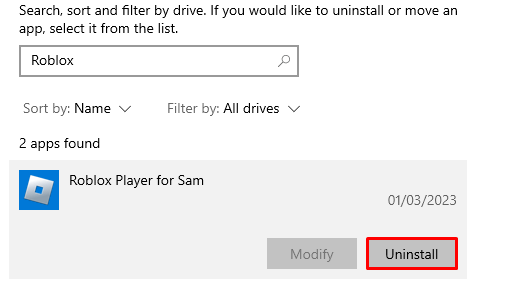
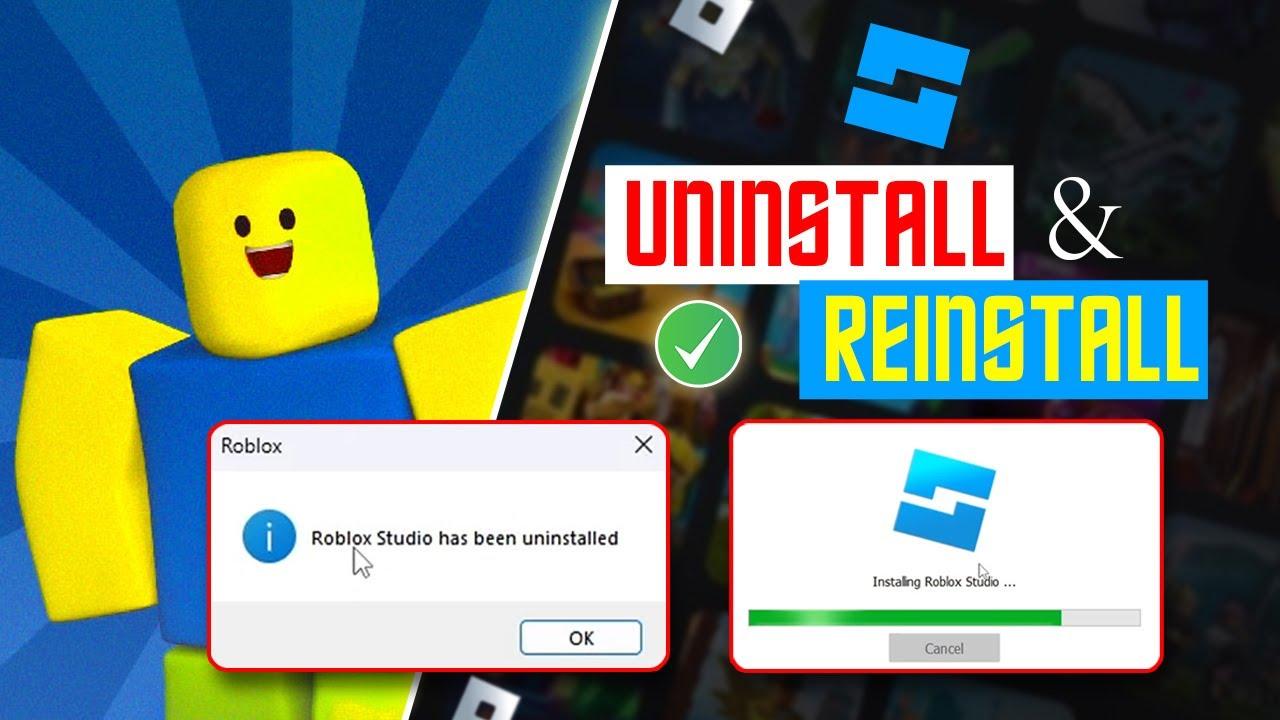
Use Apps & Features: Go to the Windows Start Menu, type 'Add or remove programs,' and select the corresponding setting. In the list of installed applications, find 'Roblox Player' and 'Roblox Studio' if you have it. Click on each and select 'Uninstall.' Follow any on-screen prompts.
Clear Residual Files (Important!): This step is vital for a truly clean reinstall. Open the Run dialog by pressing
Windows Key + R. Type%localappdata%and hit Enter. This will open your Local App Data folder. Find and delete the 'Roblox' folder within it. Next, go toC:Users[Your Username]AppDataRoamingand check for a 'Roblox' folder there as well; delete if found. Finally, navigate toC:Program Files (x86)orC:Program Filesand ensure no 'Roblox' folder remains.Empty Recycle Bin: After deleting all files, empty your Recycle Bin to permanently remove them.
Taking these extra few minutes to clear residual files can prevent issues from carrying over to your new installation, ensuring your gaming sessions are smooth and stable.
What Are the Steps to Reinstall Roblox Player?
Once you've thoroughly uninstalled Roblox, reinstalling it is a breeze. This fresh installation will bring you the latest version, optimized for current performance and free of past issues. Here's how to do it:
Visit the Official Roblox Website: Open your web browser and go to www.roblox.com. It's always best to download directly from the official source to ensure authenticity and the latest updates.
Log In to Your Account: Sign in with your Roblox username and password. This step is necessary to initiate the download process.
Launch Any Game: After logging in, select any game you wish to play and click the green 'Play' button. If Roblox Player isn't detected on your system, the website will prompt you to download and install it.
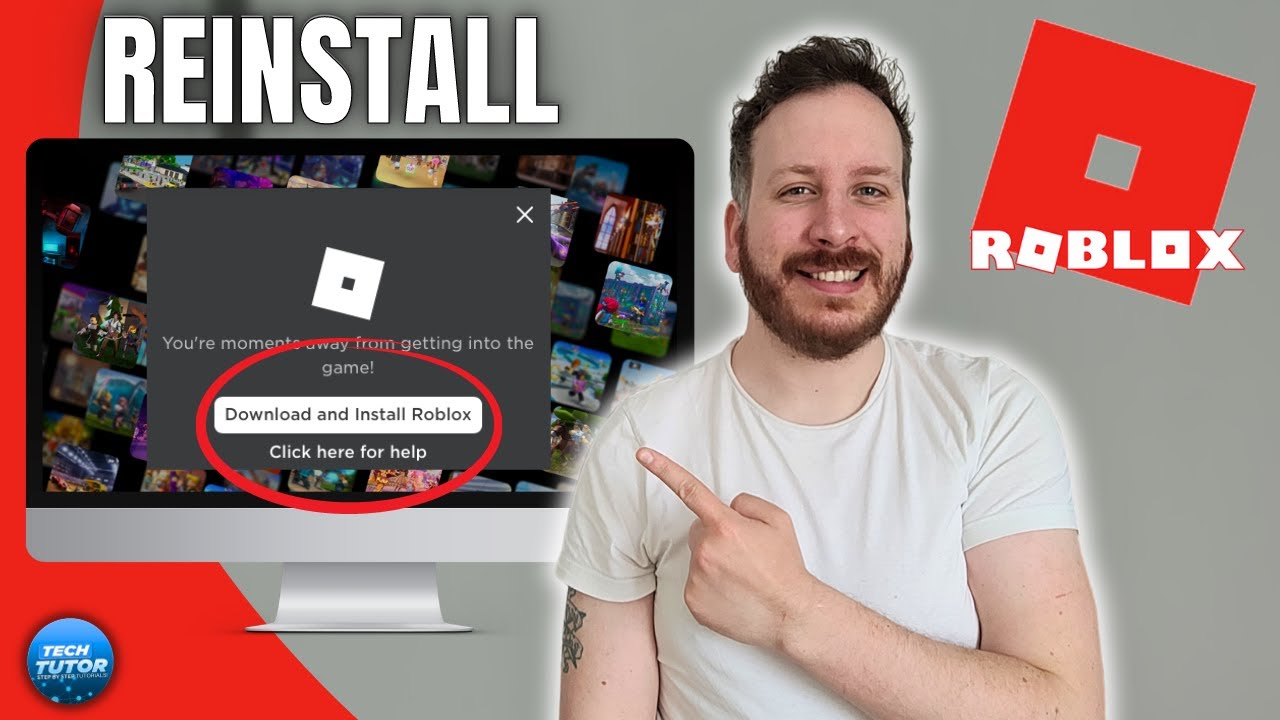
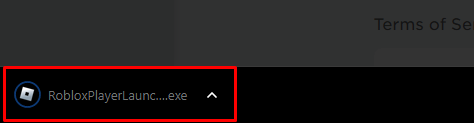
Download the Installer: A pop-up window or a banner will appear, usually saying 'Download and Install Roblox.' Click on it. The RobloxPlayerInstaller.exe file will download to your computer.
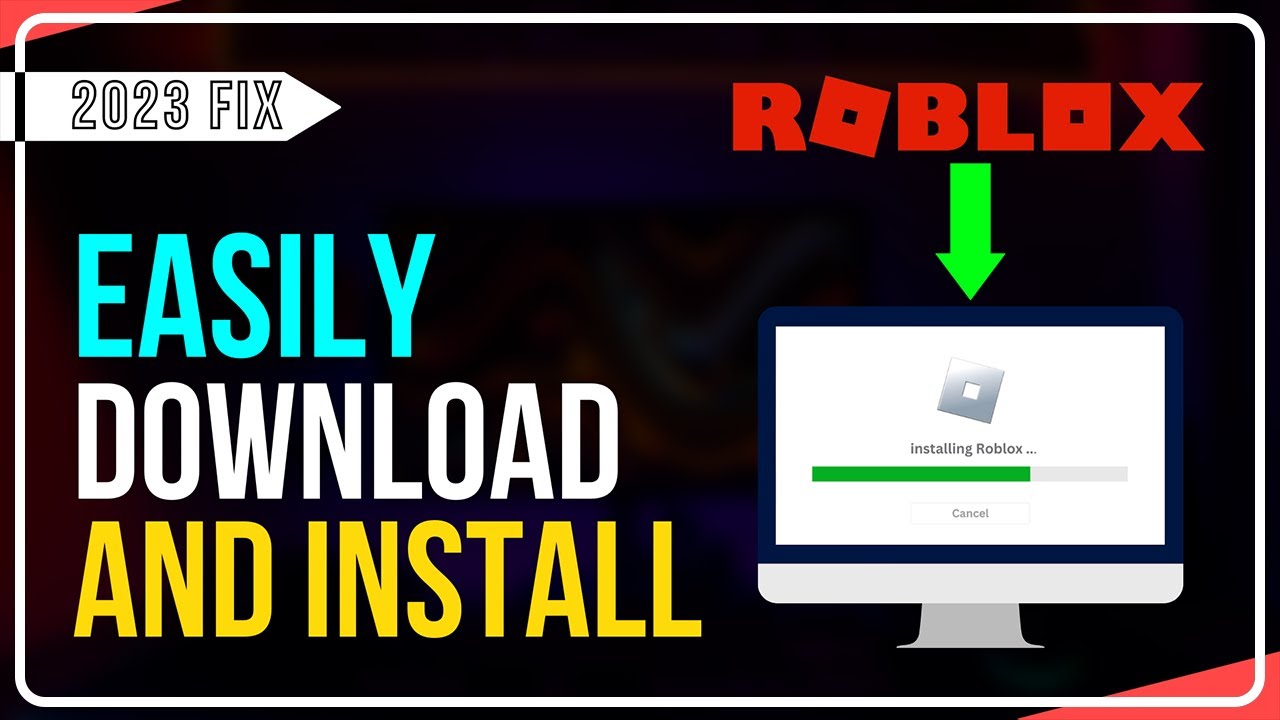
Run the Installer: Locate the downloaded installer file (usually in your 'Downloads' folder) and double-click it to run. You might see a security prompt asking if you want to allow the app to make changes; click 'Yes.' The installer will automatically download and install the necessary files.
Launch Roblox: Once the installation is complete, a success message will appear, and Roblox Player should launch automatically, or you can click the 'Play' button on the website again.
You're now ready to jump back into your favorite experiences with a fresh, optimized Roblox installation. Enjoy your newfound stability!
Will Reinstalling Roblox Delete My Game Data or Robux?
This is a common and very understandable concern for many gamers, especially those who've invested time and effort into their Roblox experience. Good news: reinstalling the Roblox Player will not delete your game data, Robux, or any items you've purchased or earned. All of your progress, Robux balance, and inventory are tied to your Roblox account, which is stored on Roblox's servers, not directly on your computer. When you log back in after a reinstall, everything will be exactly as you left it. You'll simply be accessing your account through a fresh, clean installation of the game client. So, you can reinstall with peace of mind, knowing your hard-earned progress is safe.
How Can I Troubleshoot Roblox After Reinstalling?
While a reinstall usually fixes most issues, sometimes a new problem might pop up, or an old one persists. Don't worry, there are still steps you can take. For gamers who dedicate over 10 hours a week to their passion, troubleshooting efficiently is key to maximizing enjoyment. Here’s what to check:
Update Graphics Drivers: Outdated drivers are a frequent culprit for performance issues. Visit your graphics card manufacturer's website (NVIDIA, AMD, Intel) to download and install the latest drivers.
Check Internet Connection: Roblox is an online game, so a stable internet connection is crucial. Try restarting your router and modem. If you're on Wi-Fi, consider a wired connection to rule out wireless interference.
Disable Antivirus/Firewall Temporarily: Sometimes security software can flag Roblox as a threat or block its connection. Try temporarily disabling your antivirus/firewall to see if it resolves the issue. Remember to re-enable it afterwards and add Roblox as an exception.
Run as Administrator: Right-click the Roblox Player shortcut and select 'Run as administrator.' This can sometimes resolve permission-related issues.
Clear Browser Cache: Your web browser's cache can sometimes interfere with Roblox. Clear your browser's cache and cookies, then try launching Roblox from the website again.
These steps can help address common post-reinstallation glitches, getting you back into the game faster.
When Should I Consider a Clean Reinstall Versus a Simple Update?
Knowing when to perform a full reinstall versus simply letting Roblox update itself can save you time and frustration. A simple update is usually sufficient for minor bug fixes and new features. Roblox often updates automatically when you launch the player, keeping you current without any manual intervention. However, a clean reinstall is recommended for more persistent and severe issues that updates can't seem to touch. If you're experiencing frequent crashes, significant lag that isn't network-related, corrupted game files (error messages about missing textures or assets), or if Roblox simply won't launch despite multiple attempts, then a clean reinstall is your best bet. It's like resetting your system – it clears out any deep-seated problems that might be lingering, offering a more stable and reliable platform for your gaming sessions.
What Common Issues Does Reinstalling Roblox Fix?
Reinstalling Roblox is a powerful diagnostic and repair tool that can resolve a variety of common problems, making it a go-to solution for many gamers. If you're a busy adult who games to de-stress, you want solutions that work. Here's a quick rundown of the issues it commonly addresses:
Frequent Crashes and Freezing: Often caused by corrupted core files or conflicting updates.
Persistent Lag and Performance Drops: Even on a capable PC, old or damaged files can slow things down.
Error Messages: Many 'failed to load game' or 'missing file' errors are resolved by a fresh installation.
Inability to Launch: When Roblox simply won't start or gets stuck on the loading screen.
Graphical Glitches: Textures not loading correctly, visual artifacts, or distorted graphics.
Installation or Update Failures: If previous updates or installations didn't complete successfully, leading to an unstable client.
By providing a completely new set of game files, a reinstall bypasses these underlying issues, offering a much smoother and more enjoyable gaming experience.
How to Ensure a Smooth Roblox Reinstall Process?
To make your Roblox reinstall as seamless as possible and get you back into your favorite games quickly, preparation is key. Here are some pro tips:
Stable Internet Connection: Before you start the download, ensure your internet connection is stable. A wired connection is always preferable for downloading large files to avoid interruptions.
Adequate Disk Space: Check that you have enough free space on your hard drive (at least 1 GB is recommended for Roblox and its updates).
Temporarily Disable Antivirus: Some antivirus programs can interfere with the installation process, mistakenly identifying parts of Roblox as threats. Temporarily disable it during the download and installation, then re-enable it and add Roblox to its exceptions list.
Close Other Applications: Close any unnecessary applications running in the background. This frees up system resources and ensures the installer has full access to what it needs.
Restart Your PC: A quick restart before you begin the uninstall process can clear out temporary files and processes, ensuring a cleaner start.
Backup Important Files (General Precaution): While a Roblox reinstall won't affect your personal files, it's always good practice to ensure important documents and photos are backed up, especially if you're doing major system changes. For Roblox, your account data is safe on the cloud.
Following these steps will significantly increase the chances of a trouble-free reinstall, letting you enjoy your gaming moments without technical headaches.
Phew! That was a lot, but hopefully, you now feel confident and empowered to tackle any Roblox installation issues that come your way. Reinstalling Roblox Player is a fundamental troubleshooting step that can save you hours of frustration and restore the smooth, fun, and social gaming experience you deserve. Remember, your time is valuable, and your relaxation is important. By following these steps, you're not just fixing a game; you're reclaiming your precious moments of escape and connection. What's your biggest Roblox-related gaming challenge after a reinstall? Comment below and let's help each other out!
FAQ Section
Q: How long does it take to reinstall Roblox?
A: The entire process, from uninstalling to reinstalling, typically takes 5-15 minutes, depending on your internet speed and PC performance. The download and installation itself are usually very quick.
Q: Do I need to be an administrator to reinstall Roblox?
A: Yes, you generally need administrator privileges on your Windows PC to properly uninstall and install software, including Roblox Player, to ensure all system files and registry entries are correctly managed.
Q: Can I reinstall Roblox on a different drive?
A: Roblox typically installs to the default system drive (usually C:Program Files (x86)). While you can try advanced methods to change this, it's generally not officially supported and can lead to issues. It's best to stick to the default location for stability.
Q: What if Roblox won't uninstall normally?
A: If Roblox doesn't uninstall through 'Add or remove programs,' you might need to use a third-party uninstaller tool or manually delete the Roblox folders and registry entries. However, proceed with caution when editing the registry.
Q: Is Roblox free to reinstall?
A: Yes, reinstalling Roblox Player is completely free. The client itself is a free download, and you only need your existing account credentials to log back in and access your content.
Q: Will reinstalling improve my game's FPS?
A: A clean reinstall can often improve FPS by removing corrupted files and ensuring an optimized installation, especially if previous issues like lag or stuttering were present due to software conflicts or file corruption.
Resolving common Roblox issues like crashes and lag, complete step-by-step guide for uninstalling and reinstalling Roblox Player, ensuring a clean installation for optimal performance, troubleshooting tips for post-reinstallation problems, understanding when a reinstall is necessary, saving valuable gaming time.
35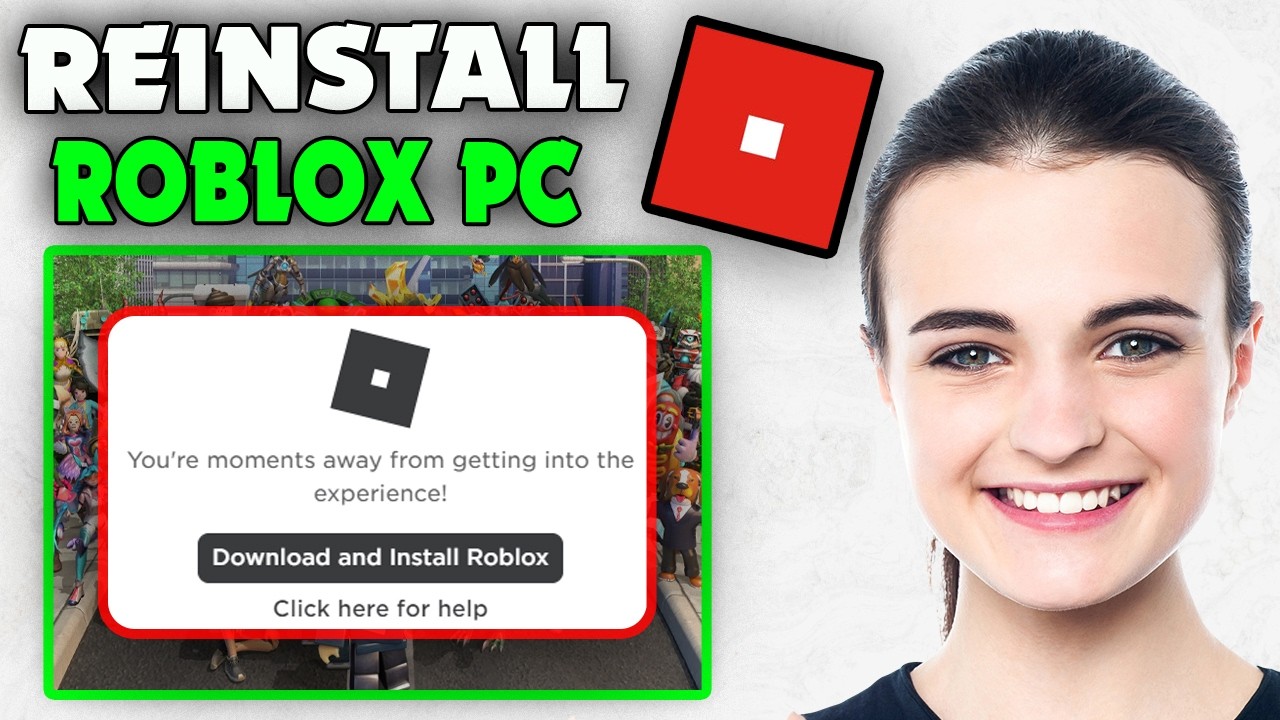

How To Reinstall Roblox PC 2026 YouTube . How To Update ROBLOX Windows Android 2026 Roblox Den Image E4b904f853 . How To Fix Failed To Download Or Apply Critical Settings Roblox In 2026 Reinstall Roblox To Fix Roblox Error . How To Update Roblox In 2026 Fix Error Code 280 On PC Mobile Xbox Roblox Update It.webp. How To Install Roblox On A Computer Easily 2026 Guide


How To Reinstall Roblox Pc YouTube . Roblox Reinstall For Beginners Step By Step Guide YouTube . Roblox Installer Critical Error 2026 Fix Guide Reinstall Roblox . Fix Roblox Error Code 0 In 2026 Secret To Smooth Play Reinstall The Roblox Application . How To Reinstall Roblox Apps Roblox


How To Update ROBLOX On Windows Android MacOS Uninstall Roblox . What Is Haptic Roblox A Player S Guide 2026 Parental Guide For Roblox Usage UnicMinds . How To Reinstall Roblox Windows Mac IOS Android Roblox Den Image E3083722b3 . How To Update Roblox On All Platforms 2026 Guide AxeeTech Roblox Update Windows Play Button Browser . How To Install Roblox On A Computer Easily 2026 Guide




How To Update ROBLOX Windows Android 2026 Roblox Den Image 27d5284f34 . How To Reinstall Roblox On PC Easy 2023 YouTube . How To Update ROBLOX Windows Android 2026 Roblox Den Image A533b35424 . How To Install Roblox On A Computer Easily 2026 Guide Select Roblox And Click. How To Publish A Game On Roblox In 2026 Roblox YouTube


How To Imstall Roblox Easily In 2026 Your Ultimate Guide Install Roblox Step 30 . How To Play Roblox For Beginners 2026 Step By Step Guide How To Play Roblox For Beginners 768x429 . How To Make A Game Pass In Roblox 2026 Step By Step Guide Game Pass Roblox.webp. Roblox Annual 2026 Toys And EB Games Australia Large . Definitive Guide To Roblox 2026 TM 07169 AU 19 60 Football Heaven TM 07169 Definitive Guide To Roblox 2026

How To Join Roblox Players Seamlessly A 2026 Guide Roblox Press Image 1 . How To Check If A Roblox Player Has Premium In 2026 . Roblox . Roblox In 2026 Play On Roblox NoFilter. How Can You Play Roblox In 2026 And Beyond How To Play Roblox


Fix Roblox Error Code 264 In 2026 10 Expert Solutions Reinstall Roblox App Client . How To And Roblox Studio On PC 2025 Guide . How To Reinstall Roblox 2025 YouTube . How Can You Play Roblox In 2026 And Beyond Roblox Xbox Can You Play Roblox On Xbox 1480 800 1.webp. How To Reinstall Roblox Apps Roblox