Are you a Roblox player looking to elevate your game with voice chat? As US gamers, often balancing work, family, and a passion for gaming, we understand the need for clear communication and immersive social experiences without unnecessary hassle. Getting a microphone working in Roblox opens up new dimensions for teamwork, socializing, and fun across countless experiences. This comprehensive guide will walk you through the essential steps, requirements, and troubleshooting tips for enabling and using a mic in Roblox. We'll cover everything from age verification to in-game settings, ensuring you can connect with friends and fellow players seamlessly. Whether you're coordinating strategies in a fast-paced game or just chatting in a virtual hangout, having a functional mic is crucial for today's interactive Roblox environment. Let's get your voice heard and enhance your Roblox adventures with crystal-clear communication, making every gaming session more engaging and enjoyable. Stay ahead in this month's trending social gaming scenes by mastering your in-game communication.
Q: What is the first step to get a mic working in Roblox?
A: The very first step to enable voice chat in Roblox is to verify your age. You must be 13 years or older and have successfully completed the age verification process in your Roblox account settings using a valid government-issued ID. This is a mandatory security measure to access Spatial Voice.
Q: How do I enable Spatial Voice in my Roblox account settings after age verification?
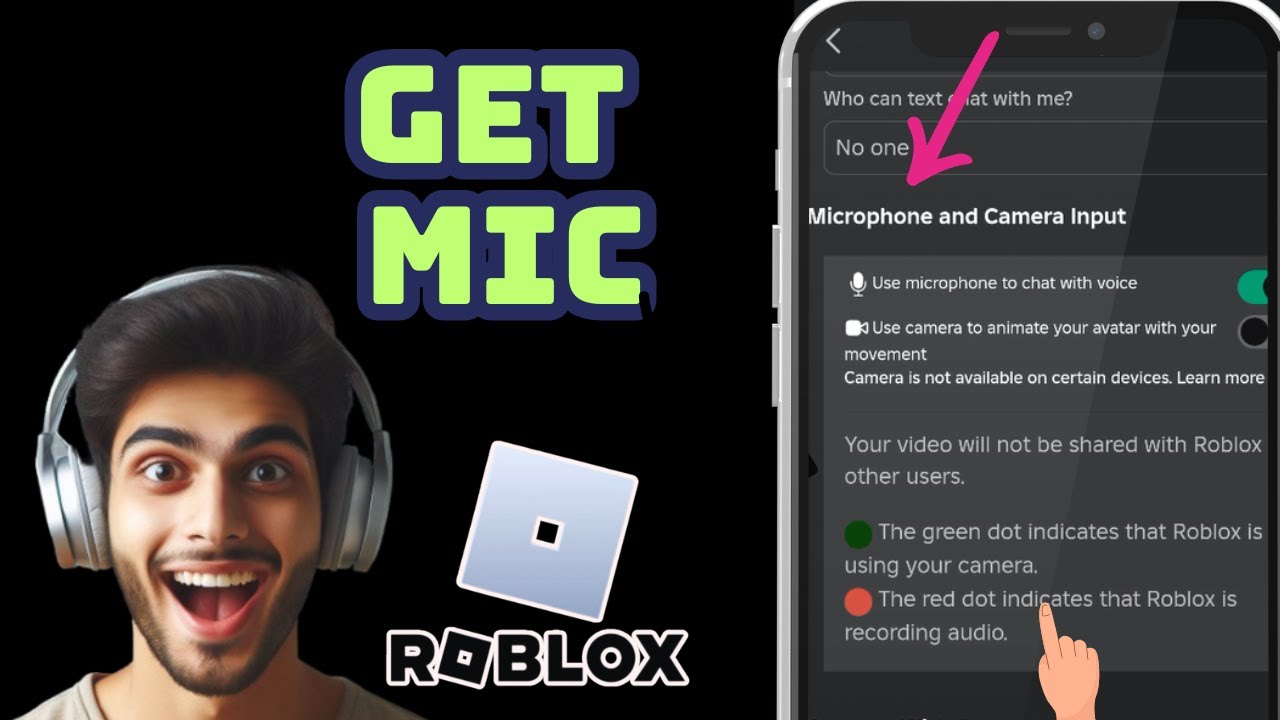
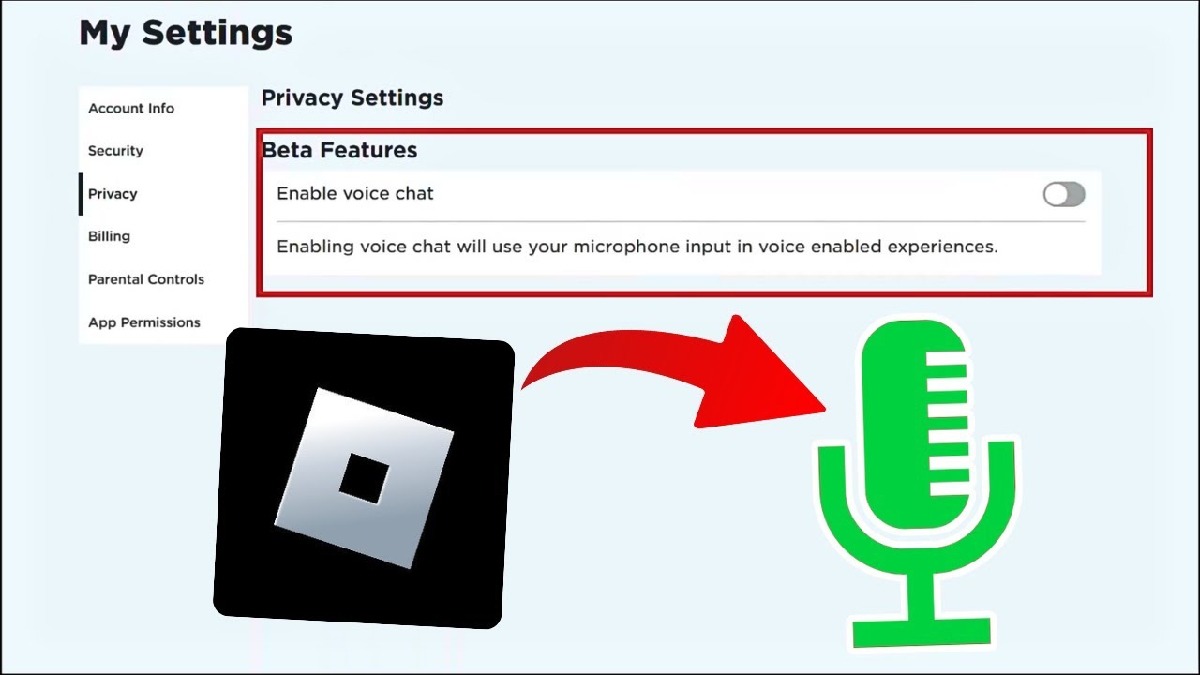
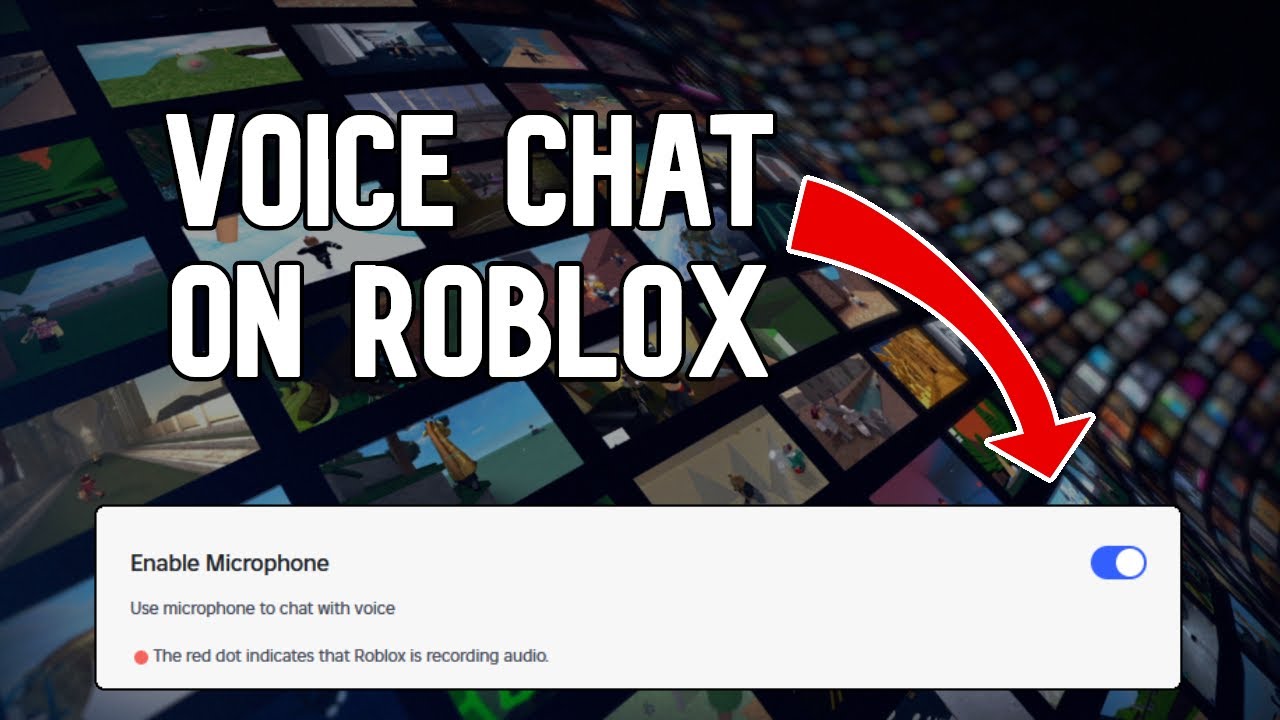
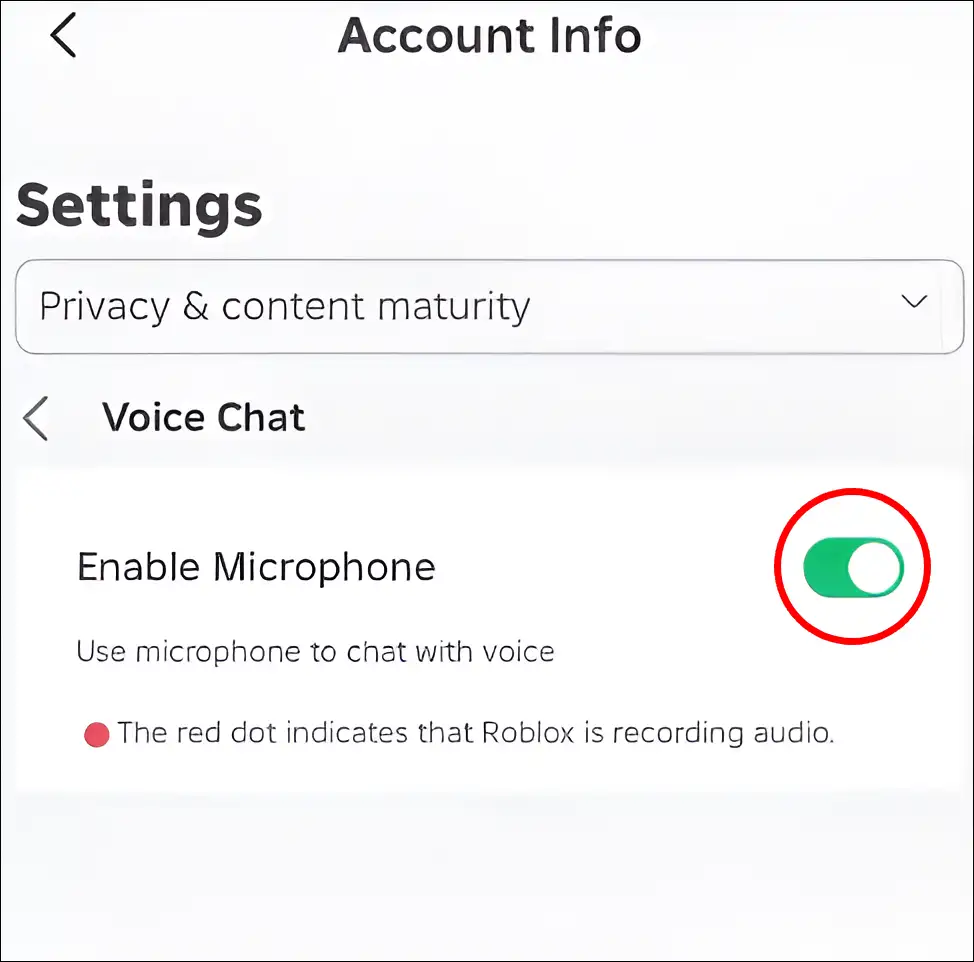
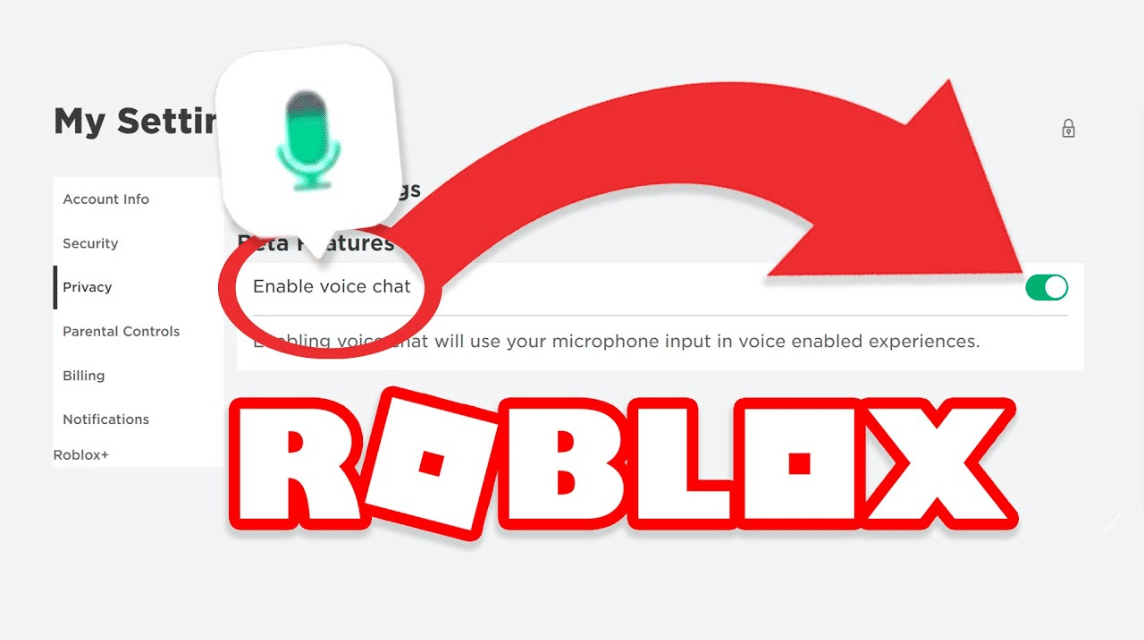
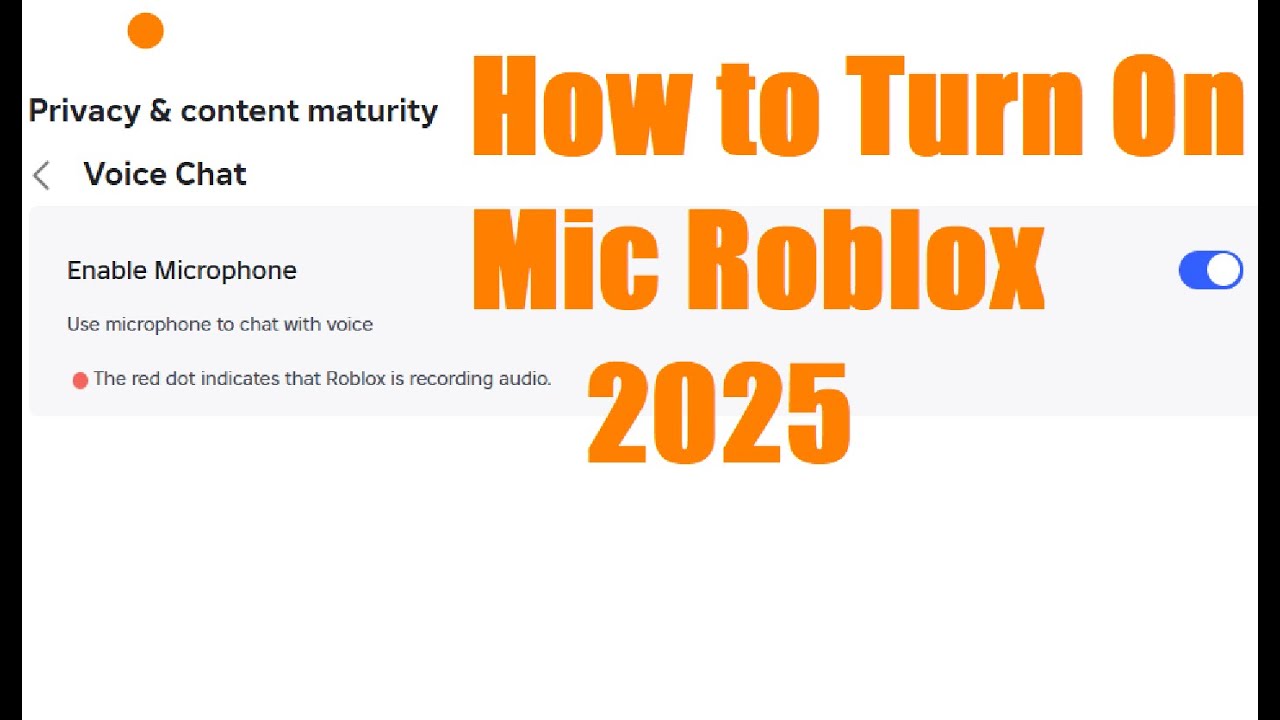
A: Once your age is verified, log into Roblox and go to 'Settings' (the gear icon), then select 'Privacy.' Within the Privacy settings, you'll find a toggle labeled 'Enable Voice Chat' or 'Spatial Voice.' Ensure this toggle is switched to the 'On' position to activate the feature for your account.
Q: Why can't I hear anyone or talk in a Roblox game even with voice chat enabled?
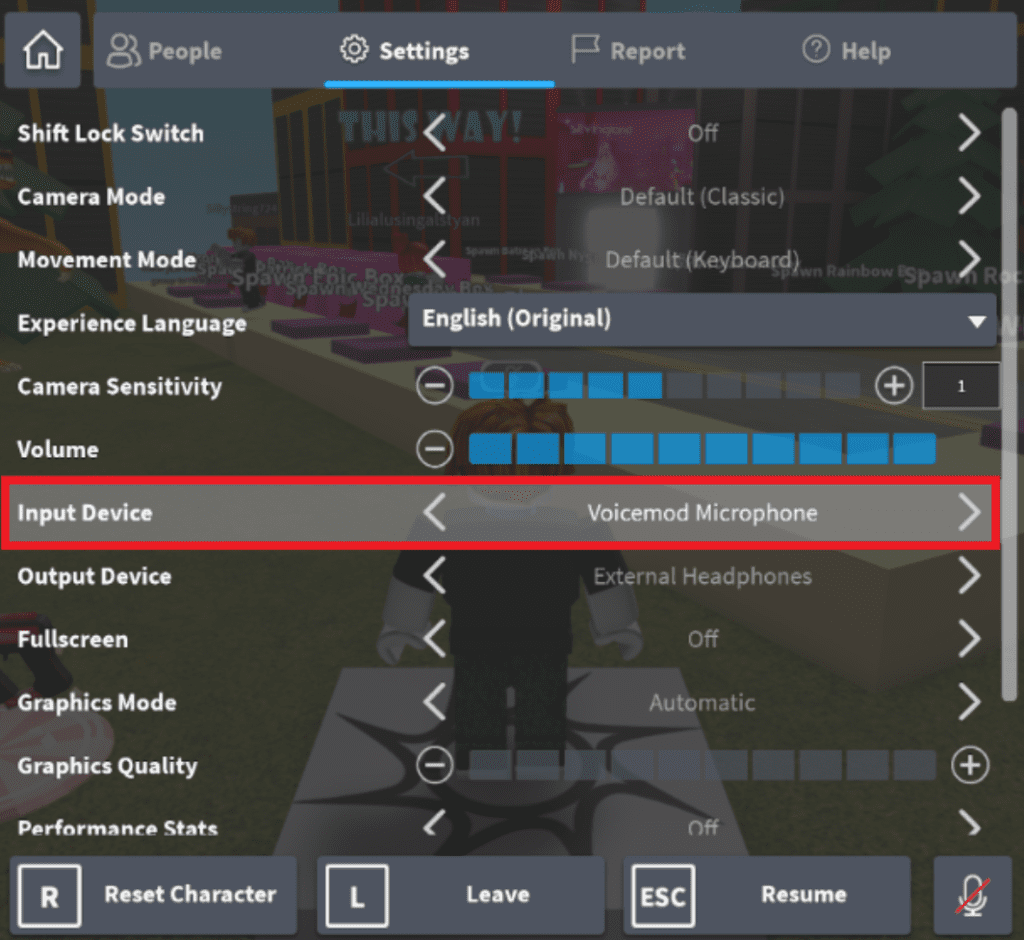
A: If you can't hear or speak, first confirm the specific Roblox experience you're in supports Spatial Voice; not all games do. Second, check your device's system microphone settings and ensure Roblox has permission to access your mic. Finally, in-game, ensure your correct microphone is selected and not muted, and verify your internet connection is stable.
Q: Is a special headset required for Roblox voice chat?
A: No, a special headset is not required. Roblox voice chat works with most standard microphones, including built-in laptop mics, integrated smartphone mics, or any USB or 3.5mm jack headset or standalone microphone compatible with your gaming device. The key is proper system detection and permission.
Q: How does Roblox's Spatial Voice differ from regular voice chat in other games?
A: Roblox's Spatial Voice is unique because it makes in-game communication location-aware. Your voice gets louder to players closer to your avatar and softer as they move away, mimicking real-world sound dynamics. This creates a more immersive and localized communication experience, fostering more natural interactions within games that support it.
Q: What should I do if my microphone drivers are outdated and affecting Roblox voice chat?
A: If outdated drivers are suspected, you should update them. On Windows, go to Device Manager, expand 'Audio inputs and outputs,' right-click your microphone, and select 'Update driver.' You can also visit your sound card manufacturer's website for the latest drivers. Keeping drivers current often resolves many audio-related issues.
Q: Can parents set controls for Roblox voice chat?
A: While Roblox requires users to be 13+ and age-verified for Spatial Voice, parents of younger users or those who wish to manage communication for their teens can utilize Roblox's parental control features in account settings. Parents can review privacy settings and decide whether to allow or restrict voice chat access for their child's account, even if age-verified, providing an extra layer of supervision.
Hey fellow gamers! Ever find yourself in a Roblox game wishing you could just talk to your teammates instead of furiously typing? You're not alone. Many of us, especially those balancing a full life with our gaming passion, appreciate the seamless communication that a microphone brings. We carve out time for gaming to unwind, connect with friends, and maybe even build some new skills. But when a simple feature like voice chat becomes a puzzle, it can turn fun into frustration. Fortunately, getting a mic working in Roblox is more straightforward than you might think, and it significantly enhances your social and cooperative gameplay.
This guide is crafted for busy US gamers like you, who want direct answers and practical solutions without the hype. We'll dive into everything you need to know about 'how to get a mic in Roblox,' from the initial setup to troubleshooting common snags. With 87% of US gamers regularly playing and many averaging over 10 hours a week, optimizing our experience, especially for social games like Roblox, is key. Let's make sure your voice is heard loud and clear, transforming your Roblox sessions from silent struggles to vibrant virtual hangouts. Ready to level up your communication?
What are the Basic Requirements for Roblox Voice Chat?
Before you dive headfirst into enabling voice chat, it's essential to understand the foundational requirements. Roblox has implemented specific measures to ensure a safe and age-appropriate environment, especially when it comes to voice communication. The primary requirement is age verification. To use Spatial Voice, which is Roblox's integrated voice chat feature, you must be at least 13 years old and have successfully verified your age on the platform using a valid ID. This is a crucial step that many adult gamers appreciate, as it helps maintain a more mature and moderated communication space. Beyond age, you'll need a working microphone, whether it's built into your headset, laptop, or a standalone USB mic, and a stable internet connection.
Furthermore, Roblox's voice chat is primarily available in experiences that have specifically enabled Spatial Voice. Not every single game on the platform will support it. Developers need to integrate this feature into their creations, so it's always good to check the experience's description or settings to confirm. This targeted approach ensures that voice chat is used thoughtfully within relevant contexts, enhancing specific gameplays rather than being a universal, always-on feature that might detract from other experiences. Keeping these core requirements in mind sets you up for a smooth activation process.
How Do I Verify My Age for Roblox Voice Chat?
Age verification is the gateway to unlocking voice chat on Roblox, and it's designed to be a secure process. To verify your age, you'll need to go to your Roblox account settings. Navigate to the 'Privacy' section, and look for an option related to 'Age Verification' or 'Voice Chat.' Roblox partners with a third-party service to securely process ID verification. You'll typically be asked to provide a photo of a government-issued ID (like a driver's license or passport) and a selfie. The system uses advanced technology to match your face to the ID and confirm your age, usually within minutes. It's a quick, one-time process that ensures the safety of the community. Once verified, you'll see a confirmation in your settings, and the voice chat options will become available.
Where Can I Find the Voice Chat Settings in Roblox?
Once your age is verified, enabling voice chat is done through your Roblox account settings. First, log into your Roblox account on the website or through the app. Click on the gear icon (Settings) usually found in the top right corner. From there, select 'Privacy.' Within the Privacy settings, you should see an option labeled 'Enable Voice Chat' or 'Spatial Voice.' It will typically be a toggle switch. Make sure this toggle is set to 'On.' If you don't see this option, double-check that your age verification was successful and that your account recognizes you as 13+. This setting controls whether you can use voice chat at all, so it's the first place to look after verification.
What is Spatial Voice and How Does it Work?
Spatial Voice is Roblox's innovative approach to in-game voice communication. Unlike traditional global voice chat, Spatial Voice creates a more immersive and realistic audio experience. When you're in an experience that supports it, your voice will sound louder to players who are physically closer to your avatar in the game world, and softer as they move further away. It's like real-world conversations where distance affects volume and direction. This feature adds a new layer of realism and strategic depth to games, especially in social hubs or role-playing experiences. For example, you might whisper to a friend right next to you without being overheard by players across the map. It encourages more natural interactions and reduces the chaos of everyone talking over each other.
Why Is My Mic Not Working in Roblox? Common Troubleshooting Steps.
Even after following all the setup steps, sometimes your mic might stubbornly refuse to cooperate. This is a common pain point for many gamers, especially when dealing with software and hardware interactions. Start by checking your system-wide microphone settings. Is your mic detected by your operating system (Windows, macOS, mobile)? Is the volume turned up? Next, ensure Roblox has permission to access your microphone. On Windows, check 'Privacy settings' > 'Microphone.' On mobile, go to app permissions. Inside Roblox, in an experience with Spatial Voice, make sure your specific microphone device is selected in the Roblox in-experience settings if multiple inputs are available. Sometimes, simply restarting Roblox or your entire device can resolve minor glitches. Also, verify your internet connection is stable, as high latency can sometimes affect voice data transmission. If you're still stuck, try testing your mic in another application like Discord to isolate if the issue is Roblox-specific or a broader hardware/driver problem. Outdated audio drivers can also cause issues, so ensure your sound drivers are up-to-date through your device manager.
Can I Use Voice Chat on Roblox Mobile?
Absolutely! Roblox is a platform known for its extensive mobile presence, with a significant portion of its player base accessing experiences from smartphones and tablets. US mobile gaming, in particular, continues to dominate, with many players relying on their devices for quick gaming sessions during commutes or downtime. Spatial Voice is fully supported on Roblox mobile apps for both iOS and Android, provided you meet the age verification requirements. The setup process is largely the same: verify your age through the app, then enable voice chat in your privacy settings. You'll use your device's built-in microphone or a connected headset. The convenience of mobile voice chat means you can stay connected and communicate with your friends seamlessly, whether you're at home or on the go. This cross-platform capability truly embodies the modern gaming trend of flexible, accessible social play.
Are There Any Safety Tips for Using Voice Chat in Roblox?
Yes, safety in online communication, especially in a platform popular with diverse age groups, is paramount. Even for adult gamers, being mindful of privacy is crucial. Always remember that what you say can be heard by others. Avoid sharing personal information such as your real name, address, phone number, or school details. Be aware of your surroundings when using voice chat; background noises can reveal more than you intend. Utilize Roblox's reporting tools if you encounter any inappropriate behavior or language. You can easily mute individual players in-game if they're being disruptive. Many adult gamers appreciate the moderation efforts but also practice personal caution. Consider using a push-to-talk key if available, to ensure your mic is only active when you intend to speak. While Roblox's age verification for Spatial Voice helps create a more mature environment, maintaining good digital citizenship and being aware of your privacy settings is always a smart move. After all, gaming should be fun and safe for everyone.
What are the Best Practices for Communicating with a Mic in Roblox?
Effective communication enhances any multiplayer experience. In Roblox, using your mic effectively means being clear, concise, and considerate. Before speaking, consider if your input is necessary and adds value. Avoid shouting, excessive background noise, or constantly having an open mic if you're in a noisy environment. Many experiences benefit from push-to-talk functionality if it's an option. When joining a new game, listen to the ongoing conversation to get a feel for the communication style and expectations. If you're playing with friends, establish some ground rules for communication to avoid talking over each other. Remember that not everyone may be comfortable with voice chat, or some may not have it enabled, so be prepared to use text chat as a fallback. Clear communication is a hallmark of good teamwork and social interaction, making your time in Roblox more productive and enjoyable. It's about building connections and having fun, and a well-used mic is a powerful tool for that.
Getting your mic set up in Roblox doesn't have to be a daunting task. By following these steps and understanding the platform's features, you're well on your way to a more immersive and interactive gaming experience. Whether you're strategizing in a competitive game or just hanging out in a social hub, voice chat makes all the difference. We know life gets busy, but taking a few moments to optimize your gaming setup ensures that your precious gaming time is as enjoyable and stress-free as possible.
What's your biggest gaming challenge when it comes to communication? Comment below!
FAQ Section
Q: Is Roblox voice chat free to use?
A: Yes, Roblox voice chat (Spatial Voice) is a free feature for all eligible users who have successfully completed age verification and meet the 13+ age requirement. There are no additional costs associated with enabling or using it, beyond needing a functional microphone.
Q: Can I use any microphone with Roblox?
A: Generally, yes. Roblox should work with most standard microphones compatible with your device, whether it's a built-in laptop mic, a gaming headset, or a USB standalone microphone. The key is ensuring your operating system recognizes and has permissions for the mic.
Q: What if I'm under 13? Can I still use voice chat?
A: No, Roblox's policy strictly requires users to be 13 years or older and have verified their age with a valid ID to access Spatial Voice. This measure is in place to protect younger users and ensure a safe communication environment.
Q: Does Spatial Voice work with all Roblox games?
A: No, Spatial Voice is an opt-in feature for developers. It only works in Roblox experiences where the game creator has specifically enabled and integrated the Spatial Voice functionality into their game. Always check the game's description for compatibility.
Q: How do I mute another player in Roblox voice chat?
A: To mute another player in a Roblox experience with Spatial Voice, you typically click on their avatar or their name in the player list. An option to 'Mute' or 'Report' should appear, allowing you to silence their voice chat specifically for your experience. This is a crucial safety and comfort feature.
Q: Will my voice chat activity be monitored by Roblox?
A: Yes, Roblox explicitly states that all voice chat is subject to moderation. This is done to enforce community standards and ensure a safe environment for all players. Automated systems and human moderators review voice communications to detect and act upon violations of their terms of service, which is a significant aspect of their commitment to user safety.
Q: Why is my microphone volume too low in Roblox?
A: If your mic volume is too low, first check your operating system's sound settings to ensure the microphone input level is adequately boosted. Also, within Roblox, some experiences might have in-game audio settings where you can adjust microphone sensitivity or volume. Make sure your physical microphone isn't too far away, and try speaking directly into it.
Roblox voice chat setup, Age verification for VC, Enabling mic in Roblox settings, Troubleshooting common mic issues, Recommended hardware for Roblox, Safety tips for voice chat, Enhancing social gameplay with voice.
35


How To Turn On Mic In Roblox 2026 YouTube . How To Actually Get Or Enable Mic Or Vc On Roblox Mobile Enable . Der Einfachste Weg Und Die F R Open Mic Im Neuesten Roblox 11 . How Does The Roblox Push To Talk Button Work Effectively How To Enable Voice Chat In Roblox 2026.webp. How To Actually Turn On Microphone Input On Roblox Mobile Or Pc



How To Play Music Through Mic On Roblox Guide 2026 YouTube . Cara Aktifkan Mic Di Roblox Dengan Mudah. How To Get Voice Chat On Roblox Enable Microphone On Roblox YouTube . Roblox Mic Troubles That Red Triangle Explained . How To Get Player S Mic Loudness Roblox Studio Voice Chat Tutorial


:max_bytes(150000):strip_icc()/Roblox-microphone-toggle-dc5112a0520b4494a4a3acf74872c09b.jpg)
How To Turn ON Your Mic In Roblox Easy Guide Roblox Mic Tutorial Hqdefault . Roblox Mic Your Voice In The Metaverse . How To Turn On The Microphone On Roblox Voice Chat . Mic Games In Roblox At Harrison Fong Blog Mic Up Roblox . How Do You Turn Your Mic On In Roblox Roblox Microphone Toggle


How To Turn On The Microphone On Roblox Voice Chat Enable Roblox App. How To Use Roblox Voice Chat With Voicemod 1024x940 . How To Activate Mic Or Voice Chat On Roblox Get Roblox VOICE CHAT . How To Turn On The Microphone On Roblox Voice Chat . Tutorial On Mic Di ROBLOX 2026 Terbaru YouTube


How To Get Mic Roblox Mobile Full Guide YouTube . How To Use MIC On Xbox Roblox 2025 YouTube . How To Message On Roblox 2026 A Quick Guide . Why Is My Mic Not Working On Roblox Solutions Fixes Why Is My Mic Not Working On Roblox Step 8 Version 2 . Why Won T My Roblox Voice Chat Work Simple Fixes



Roblox Mic Not Working 7 Quick Fixes That Work Roblox Mic Not Working . Why Doesnt My Keyboard Work In Roblox . Lernen Sie Den Charakter Von Akaza Kennen Dem Teufel Aus Upper Moon 3 Cara Mendapatkan Voice Chat Di Roblox Settings . How To Remove Mic Above Head In Roblox 2024 YouTube . How To Get Microphone Rod In Fisch March 2026 Full Twitch Guide Get Microphone Rod In Fisch


How To Turn On Mic In Roblox Enable Roblox Mic PC Mobile Guide YouTube . How To Get Voice Chat On Roblox 2026 Roblox Desk How To Get Voice Chat On Roblox In 2026.webp. How To Turn On Mic On Roblox How To Enable And Use Voice Chat On . How To Turn On The Mic In Roblox For Android And IPhone Images 5 1 1144x644 . How To Play Music Through Mic On Roblox 2025 Easy Voice Chat YouTube