Are you a Roblox player who values your privacy and wants to control who can join your game sessions? Many adult gamers, balancing careers and family, find unexpected interruptions during their precious gaming time frustrating. This comprehensive guide will walk you through the precise steps on how to turn off joins in Roblox, giving you ultimate control over your online presence. We understand that whether you are unwinding after a long day, engaging in a focused building session, or just enjoying some solo exploration, unwanted company can disrupt the experience. This article provides practical, up-to-date solutions for managing your privacy settings, making your game sessions truly your own. Learn how to configure your profile, adjust in-game settings, and even set up private servers to ensure only invited players can join. We will cover everything from basic privacy toggles to advanced server management, ensuring you have all the tools to optimize your Roblox experience for maximum enjoyment and minimal interruptions. Stay informed and empowered to shape your gaming environment.
How do I fully turn off all joins in Roblox to ensure complete privacy?
To fully turn off all joins in Roblox and guarantee complete privacy, you need to adjust your account's global privacy settings. Log in to your Roblox account on the website or app, go to 'Settings', then select 'Privacy'. Locate the option 'Who can join me in games?' and set it to 'No one'. This ensures that no one, not even your friends, can spontaneously join your game sessions without an explicit invite from you, providing maximum control over your gaming environment for uninterrupted play or content creation.
Can I set up a private server in Roblox for friends only without public access?
Yes, many popular Roblox games offer 'Private Servers' (sometimes called 'VIP Servers') that you can purchase with Robux. These servers provide an exclusive space where only invited players can join. Once you own a private server for a specific game, you can manage who has access by generating invite links or whitelisting specific usernames. This is an excellent solution for playing exclusively with friends, family, or a curated group, ensuring your sessions are private and free from public interruptions.
Why would an adult gamer want to stop friends from joining their Roblox games?
Adult gamers often seek control over their gaming environment to balance relaxation, focus, and social interaction on their terms. Stopping friends from joining allows for uninterrupted solo play, focused skill-building, or simply unwinding after a busy day without unexpected social demands. It's about respecting personal boundaries and optimizing limited gaming time, ensuring the experience is precisely what the player needs, rather than a constant social obligation, a trend highlighted by the increasing value gamers place on personal time and focused play in 2026.
Is there a way to prevent specific players from joining my Roblox game without blocking them entirely?
Directly preventing specific players (who are still your friends) from joining your *public* game without blocking them entirely is not an inherent Roblox feature outside of private servers. Your 'Who can join me in games?' setting applies broadly. However, if you're using a game's private server, you can often remove or ban specific players from that server without unfriending them. For public games, your best option is to set 'Who can join me in games?' to 'No one' and only join specific group sessions via invites.
Does Roblox Studio offer tools to manage who can access my developed games?
Absolutely. If you are developing your own game in Roblox Studio, you have full control over its access permissions. Within Roblox Studio, go to 'Game Settings' (found under the 'Home' tab) and then navigate to the 'Permissions' section. Here, you can set your game's 'Playability' to 'Private'. You can also add specific collaborators in the 'Collaborate' tab, granting them access to edit or play the private version. This is essential for testing, team development, and ensuring your project remains confidential until you are ready for a public release.
How do Roblox's privacy settings impact overall online visibility beyond just game joins?
Roblox's privacy settings are comprehensive and impact much more than just game joins. They control who can view your inventory, friends list, followers, who can send you friend requests, and who can message or chat with you. By adjusting these settings, you manage your overall online visibility and social interactions within the platform. Setting these to more restrictive options (e.g., 'No one' or 'Friends') creates a more private experience, limiting unsolicited contact and helping to maintain a focused gaming environment.
What are the immediate benefits of turning off game joins for a casual Roblox player?
For a casual Roblox player, the immediate benefits of turning off game joins include uninterrupted relaxation and focused gameplay. It means you can explore new worlds, build creations, or simply unwind without the distraction of friends or strangers popping in. This control allows you to maximize your enjoyment during limited gaming sessions, avoiding performance issues that might arise from more players, and tailoring your experience precisely to your mood, whether that's solo exploration or a pre-arranged social event.
Navigating the vast world of Roblox can be incredibly rewarding, offering endless opportunities for creativity, social interaction, and pure fun. However, for many of us balancing a job, family, and life, our gaming time is precious. We often seek relaxation, a moment to build skills, or simply uninterrupted enjoyment. One common frustration that many gamers face is the unexpected arrival of others in their game sessions. Imagine finally sitting down to unwind after a long day, only to have friends or even strangers pop into your private world without an invitation. This isn't about being anti-social; it's about control, privacy, and ensuring your gaming experience aligns with what you need at that moment. This guide is specifically designed for you, the busy gamer, showing you exactly how to turn off joins in Roblox so you can manage your digital space effectively and enjoy your games on your own terms.
According to recent US gaming stats, approximately 87 percent of gamers regularly play, with many dedicating 10 plus hours a week, often fitting it around other responsibilities. Mobile gaming continues its dominance, alongside a strong trend in social gaming. Yet, even in a social landscape, the desire for personal space is paramount. This article cuts through the noise, offering clear, actionable steps to reclaim your Roblox privacy. We'll explore various methods, from simple profile tweaks to advanced game settings, ensuring you have the knowledge to prevent unwanted joins and cultivate a gaming environment that truly serves your needs. Let's dive into how you can take charge of your Roblox experience.
How Do I Prevent Friends From Joining My Roblox Game?
Preventing friends from joining your Roblox game without an explicit invitation is primarily handled through your account's privacy settings. Roblox offers granular control, allowing you to tailor your experience. The quickest way to manage this is by adjusting the 'Who can join me in games?' setting to 'No one' or 'Friends I follow' if you want a more curated list. This ensures that even your closest friends can't just jump into your game without your prior approval, giving you the space you need when you need it.
To configure this, log into your Roblox account and navigate to the 'Settings' page. From there, select 'Privacy'. You will see a section dedicated to 'Other Settings'. Look for 'Who can join me in games?' and click on the dropdown menu. Your options typically include 'Everyone', 'Friends', 'Friends I Follow', and 'No one'. Choosing 'No one' offers maximum privacy, ensuring your gaming sessions are completely private unless you explicitly invite someone through the game's specific features or by playing in a private server you control. This is a crucial step for gamers who value their focus during gameplay or who are just looking for some quiet, solo time.
What Are The Roblox Privacy Settings For Join Control?
Roblox offers a robust set of privacy settings designed to give players significant control over their interactions and who can join their games. Beyond the general 'Who can join me in games?' option, you also have settings for who can chat with you, who can make me a friend, and who can message you. These interconnected settings contribute to your overall privacy bubble within the platform. Understanding and utilizing these controls is vital for creating a secure and comfortable gaming environment, especially for adult players who want to avoid unsolicited interactions while enjoying their favorite titles.
Key privacy settings for join control include:
- Who can join me in games?: This is the primary setting. Set it to 'No one' to block all uninvited joins.
- Who can make me a friend?: Limiting this to 'No one' or 'Friends of Friends' can reduce spam friend requests, which often precede join requests.
- Who can chat with me in App?: While not directly about joins, controlling chat interactions helps manage overall unsolicited contact.
- Who can message me?: Similar to chat, restricting messages helps prevent unwanted communication from players trying to get into your game.
Regularly reviewing these settings ensures that your Roblox experience remains tailored to your preferences, reflecting the balance between social engagement and personal space that many modern gamers seek.
Can I Make My Roblox Game Private For Only Certain Players?
Yes, absolutely. Making your Roblox game truly private for only certain players involves a combination of your account's privacy settings and the specific features of the game you're playing. Many Roblox experiences offer private servers, often called 'VIP Servers' or 'Private Servers,' which you can purchase with Robux. These servers give you exclusive control over who can join, usually by allowing you to generate invite links or whitelist specific usernames. This method is ideal for playing with a select group of friends or family without any interruptions.
If a game offers private servers, you'll typically find a 'Servers' tab on the game's main page. From there, you can create a private server and invite players. This is incredibly useful for cooperative gameplay, focused building sessions, or simply exploring a new game with trusted companions. It's a popular feature among groups, as it ensures a consistent and controlled environment. Remember, even with a private server, it's wise to maintain your general 'Who can join me in games?' setting to 'No one' as an added layer of protection, preventing anyone from joining your public game if you ever accidentally switch modes.
Why Would I Want To Turn Off Joins In Roblox?
There are numerous compelling reasons why a gamer, especially one balancing a busy life, would want to turn off joins in Roblox. Foremost among these is the desire for uninterrupted focus. Whether you're deeply engrossed in a complex build, strategizing in a competitive game, or simply trying to relax after a demanding day, unexpected joins can be highly disruptive. Privacy is another major factor; not everyone wants their online activities constantly visible or accessible to others, even friends. Sometimes, you just want to explore a game solo or test out new features without the pressure of social interaction.
Other reasons include:
- Performance Optimization: Fewer players often mean better game performance, especially if you're playing on an older device or have a less stable internet connection.
- Content Creation: Streamers and YouTubers often require private sessions to record content without interruption or unwanted background noise from other players.
- Skill Building: Practicing new skills or mechanics in a game often requires a dedicated, private space to experiment without judgment or distraction.
- Stress Relief: For many, gaming is a form of stress relief. Having control over who can join helps maintain that calm and relaxing atmosphere.
- Moderation/Testing: Game developers and testers frequently need to operate in private environments to debug or implement new features without public interference.
Ultimately, turning off joins empowers you to curate your Roblox experience to match your current needs, promoting a more enjoyable and productive gaming session.
Are There In-Game Settings To Control Who Can Join My Server?
While the primary join control is managed through your Roblox account's global privacy settings, many individual games within Roblox do offer their own specific in-game settings to manage server access, particularly for private or VIP servers. These settings are highly dependent on the game developer and can vary widely from one experience to another. For example, some games allow you to generate temporary invite codes, while others let you whitelist specific users or even kick/ban players directly from your purchased private server.
When you join a game that offers private servers, look for options like 'Server Settings,' 'VIP Settings,' or a 'Configure' button associated with your private server. Here, you might find controls to:
- Manage Player List: Add or remove specific usernames.
- Generate Invite Links: Create shareable links that grant temporary access.
- Kick/Ban Players: Remove disruptive or unwanted players from your current server.
- Server Name/Description: Customize your server's identity.
Always check the game's menu or the private server management interface for these options. Leveraging these in-game tools, combined with your main account privacy settings, provides the most comprehensive control over who can share your Roblox gaming space.
How To Configure Roblox Studio Settings For Private Game Access?
For those who create their own experiences in Roblox, configuring private game access through Roblox Studio is a fundamental skill. If you're developing a game and want to test it privately, collaborate with a select team, or simply prevent public access until it's ready, Studio provides the necessary tools. This is crucial for creators who want to refine their creations without public scrutiny or unexpected visitors. It's also a great way to control who has access to your intellectual property during development phases.
Here's how to manage game access in Roblox Studio:
- Open Your Game in Roblox Studio: Launch Roblox Studio and open the game you wish to configure.
- Access Game Settings: Go to the 'Home' tab in Studio, then click 'Game Settings' (it usually has a gear icon).
- Navigate to Permissions: In the Game Settings window, select the 'Permissions' tab.
- Set Access Level: Under 'Playability,' you'll see options like 'Public,' 'Private,' or 'Friends Only.' Choose 'Private' to restrict access.
- Add Collaborators (Optional): If you want specific team members to access the private game, go to the 'Collaborate' tab within Game Settings. You can add their usernames and define their permissions (e.g., Edit, Play, View).
- Save Changes: Click 'Save' to apply your new settings.
By setting your game to 'Private' in Studio, only you and any designated collaborators can access it. This method ensures complete control over who can join your developing project, aligning with best practices for game development and personal privacy.
What Happens If I Set My Roblox Profile To Private?
Setting your entire Roblox profile to private significantly enhances your overall privacy, but it's important to understand its specific impact on game joins. When your profile is private, it primarily affects who can view your inventory, friends list, followers, and who can send you friend requests and messages. It adds a strong layer of defense against unsolicited contact and data visibility. However, a private profile does *not* automatically turn off game joins if your 'Who can join me in games?' setting is still set to 'Everyone' or 'Friends'.
Think of it this way: a private profile is like closing your social media feed, while the 'Who can join me in games?' setting is like locking your front door. You need to do both for maximum security. While a private profile makes it harder for strangers to find you or learn about your activities, they could still potentially join a public game you're in if your join settings permit it. Therefore, for complete control over game joins, always ensure your specific 'Who can join me in games?' privacy setting is adjusted alongside your general profile visibility.
How Do I Kick Or Ban Unwanted Players From My Roblox Game?
Kicking or banning unwanted players from your Roblox game is an essential moderation tool, especially when you are hosting a private server or developing your own experience. While your privacy settings help prevent initial joins, sometimes a player might slip through, or a once-welcome player becomes disruptive. The ability to manage individuals in real-time is crucial for maintaining a positive and controlled environment, whether for a group play session or public moderation. This functionality is typically available to the game creator or the owner of a private server.
For private server owners:
- In-Game Player List: Many private servers offer an in-game menu (often accessed via a button or an 'M' key) that displays a list of current players. From this list, you can usually click on a player's name and select 'Kick' or 'Ban'.
- Server Settings Panel: Some games provide a dedicated 'Server Settings' panel within the game or on the Roblox website where you can manage player lists and apply bans.
For game creators (in your own experiences):
- Roblox Studio: In Roblox Studio, you can use scripting (Lua) to create custom moderation tools. This allows you to implement commands to kick, ban, or even mute players based on your game's specific needs. This is a more advanced method but offers ultimate control.
- Developer Console: During testing, you can access the Developer Console (F9 on PC) to see server activity, but direct kicking/banning typically requires pre-scripted commands.
Remember that kicking is temporary (they can rejoin), while banning is usually permanent for that server/game. Use these tools responsibly to ensure a fair and enjoyable experience for everyone.
What Are The Best Practices For Maintaining Roblox Privacy?
Maintaining strong privacy on Roblox is about more than just turning off joins; it's about a holistic approach to your account settings and online behavior. In an era where digital security is paramount, and considering recent trends show increasing awareness among gamers about their online footprint, implementing best practices ensures a safe, enjoyable, and controlled experience. This is particularly important for adult gamers who might have personal information linked to their accounts or simply value their digital peace of mind.
Here are key best practices:
- Review Privacy Settings Regularly: Roblox updates frequently. Periodically check your 'Privacy' settings to ensure they align with your current preferences.
- Limit Friend Requests: Set 'Who can make me a friend?' to 'No one' or 'Friends of Friends' to prevent unwanted connections.
- Control Communication: Restrict 'Who can chat with me in App?' and 'Who can message me?' to 'Friends' or 'No one'.
- Two-Step Verification: Always enable 2SV on your Roblox account for an extra layer of security against unauthorized access.
- Be Mindful of Sharing: Avoid sharing personal information (real name, address, phone number) in games or public chats.
- Report Abuse: If you encounter inappropriate behavior or harassment, use Roblox's reporting tools.
- Use Private Servers: For specific group play, opt for private servers to control the guest list explicitly.
- Strong, Unique Passwords: Use a strong, unique password for your Roblox account, different from passwords used on other sites.
By following these best practices, you can create a robust privacy shield around your Roblox activities, allowing you to relax, play, and socialize on your own terms.
In conclusion, taking control of who can join your Roblox games is a straightforward yet powerful way to enhance your gaming experience. Whether you're seeking uninterrupted relaxation, focused creation, or just some personal space, Roblox provides the tools to make it happen. From adjusting your 'Who can join me in games?' setting to leveraging private servers and implementing overall profile privacy, you now have a comprehensive guide to secure your digital sanctuary. Empower yourself to play Roblox exactly how you want to, making your gaming time truly yours. What's your biggest gaming challenge when it comes to privacy and unsolicited joins? Comment below!
FAQ Section
Are default Roblox games public?
Yes, by default, most Roblox experiences are public, meaning anyone can join if your general account settings allow it. Developers typically make games public to encourage discovery and player engagement. To ensure privacy, you must actively change your account's 'Who can join me in games?' setting or utilize private servers within specific games.
Can I stop specific friends from joining?
You cannot selectively block individual friends from joining your public game if your settings allow 'Friends' to join. To prevent specific friends, you would need to set 'Who can join me in games?' to 'No one' or use a private server and only invite your chosen group. Unfriending them is also an option if you wish to block all contact.
Does making my profile private stop joins?
No, making your Roblox profile private primarily affects who can see your inventory, friends list, and send you requests or messages. It does not directly prevent others from joining your game sessions if your 'Who can join me in games?' privacy setting is still set to 'Everyone' or 'Friends'. You must adjust both for complete control.
Is there a quick "do not disturb" mode?
Roblox does not have a single, universal 'do not disturb' button for game joins. The closest equivalent is manually setting 'Who can join me in games?' to 'No one' in your privacy settings. This must be done through your account settings on the website or app, not typically within a game itself.
Can I change join settings mid-game?
Generally, no. Your primary 'Who can join me in games?' setting is global and must be changed via your account's privacy settings outside of an active game session. Some individual games with private servers might allow you to kick players mid-game, but the overall join permission is set beforehand.
Control Roblox game joins, Enhance player privacy, Prevent unwanted interruptions, Manage Roblox server access, Adjust friend join settings, Optimize solo or private play, Roblox privacy configurations, Steps to stop joins in Roblox, Roblox profile settings, Roblox game access control
35
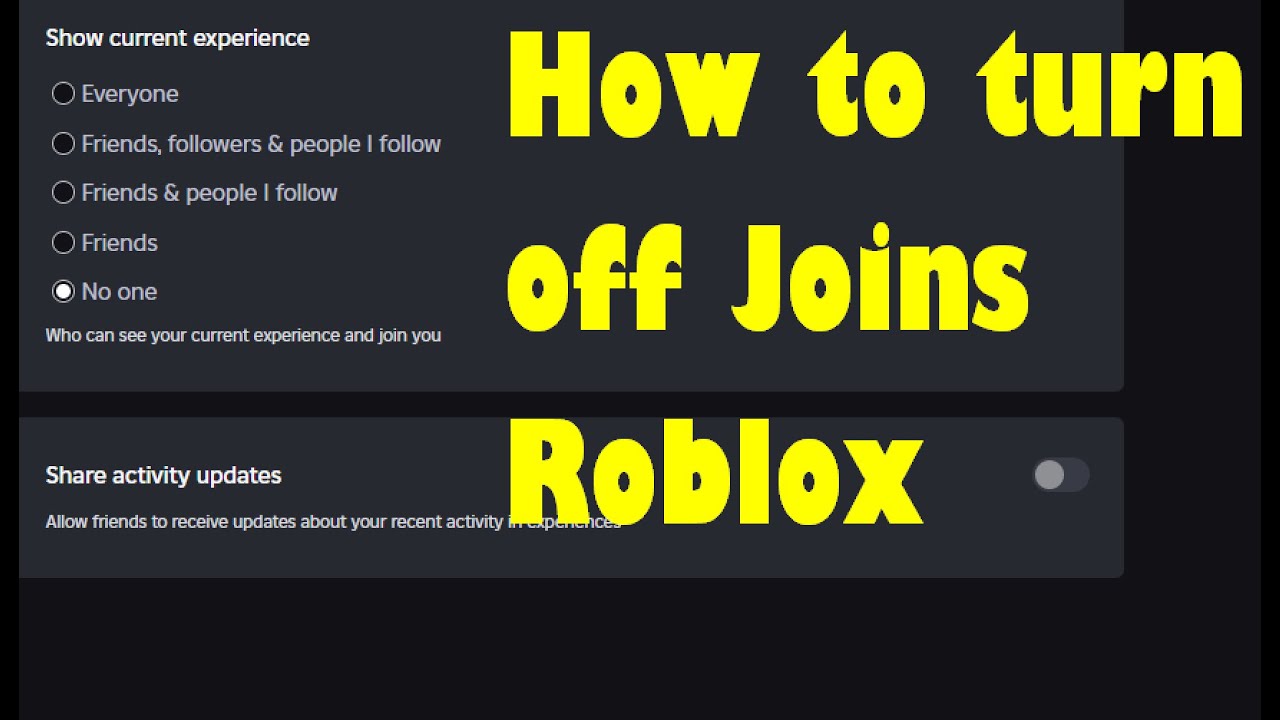


Roblox Privacy How To Turn Off Joins In Roblox . Roblox Privacy How To Turn Off Joins In Roblox . How To Turn Off Joins In Roblox YouTube . How To Turn Off Joins In Roblox 2026 YouTube . How To Turn Off Joins In Roblox No Friends Join 2026 YouTube

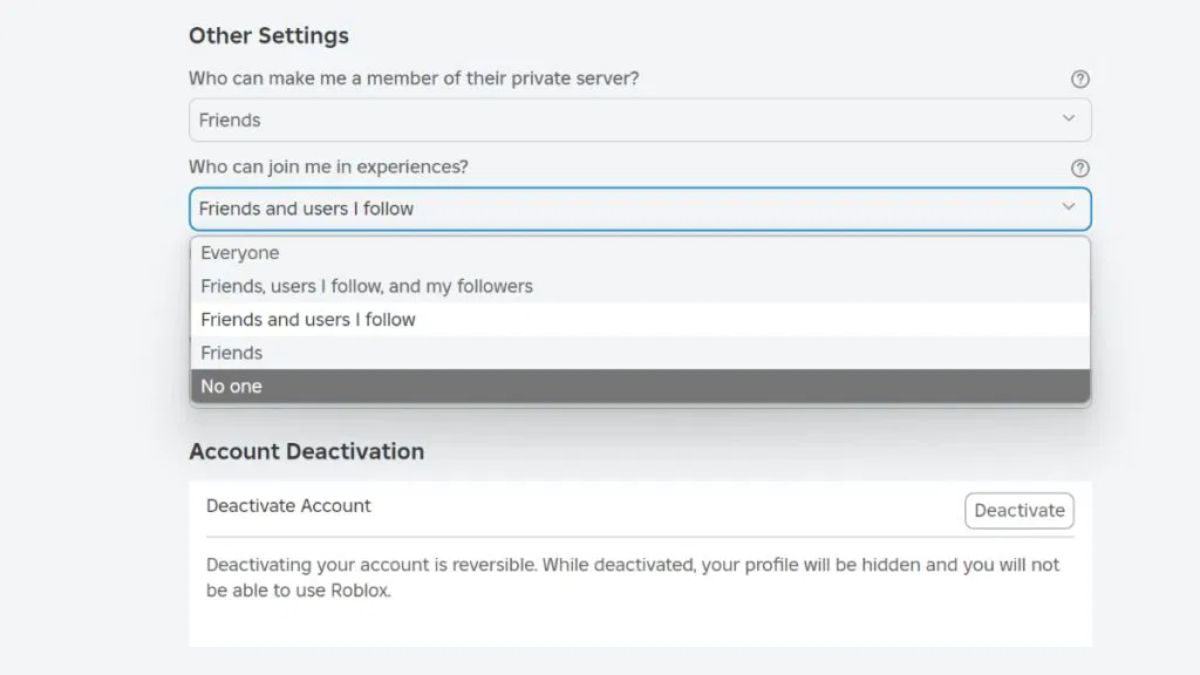


Roblox Privacy How To Turn Off Joins In Roblox . Roblox Joins On How To Enable Them In 2026 Roblox 2 1 . Roblox Privacy How To Turn Off Joins In Roblox . How To Turn Off Joins On Roblox 2026 Privacy Update YouTube . Roblox Privacy How To Turn Off Joins In Roblox


Roblox Privacy How To Turn Off Joins In Roblox . Roblox Privacy How To Turn Off Joins In Roblox . Roblox Joins On How To Enable Them In 2026 . How To Turn Joins Off In Roblox Mobile Pc YouTube . Roblox Privacy How To Turn Off Joins In Roblox


Roblox Joins On How To Enable Them In 2026 Turn Off Joins In Roblox Step 17 . Roblox Privacy How To Turn Off Joins In Roblox . How To Change Join On Join Off In Roblox 2024 YouTube . How To Turn Off Joins In Roblox Stop People From Joining Your Game . Roblox Privacy How To Turn Off Joins In Roblox


Roblox Privacy How To Turn Off Joins In Roblox . Roblox Privacy How To Turn Off Joins In Roblox Hqdefault . How To Turn Off Joins In Roblox Beginner Tutorial 2026 YouTube Hqdefault . Roblox Privacy How To Turn Off Joins In Roblox V4 460px Turn Off Joins In Roblox Step 2 . Roblox Joins On How To Enable Them In 2026


Roblox Privacy How To Turn Off Joins In Roblox . How To Turn Off Joins In Roblox Privacy Settings Roblox Desk How To Turn Joins Off In Roblox.webp. Silence The Chatter Roblox Chat On Xbox . Roblox Privacy How To Turn Off Joins In Roblox . Roblox Privacy How To Turn Off Joins In Roblox Hqdefault




How To Turn On Joins In Roblox 2026 YouTube . How To Turn Off Join On Roblox YouTube . How To Turn Off Your Joins On Roblox Simple Guide YouTube . How To Turn Off Joins In Roblox Disable Roblox Joins Roblox Join . How To Turn Joins Off In Roblox On PC Laptop Windows 2026 YouTube